Fit verdict: SHIELD TV Pro provides two USB 3.0 Type-A ports and supports storage expansion with USB flash or hard drives. That does not mean any bulky USB enclosure will sit neatly behind it. Match the exact SHIELD model, storage purpose and connector clearance before ordering a drive for a tight TV cabinet.
Dimensions and conditions
| Check | Reference | What it means |
|---|---|---|
| USB connections | Two USB 3.0 Type-A ports | SHIELD TV Pro specification |
| Published body | 159 × 98 × 25.93 mm | Check the orientation used on your shelf |
| Built-in storage | 16 GB, partly occupied by software | External expansion is a separate choice |
1. Identify your SHIELD TV Pro and storage task
Confirm that you have the Pro hardware covered by NVIDIA’s specification page. Similar SHIELD names can hide different physical connections. Decide whether you need removable media storage or an expansion arrangement for the device’s own storage. Those uses can involve different setup and formatting choices. Back up any existing files before following a process that formats a drive. Do not assume that connecting a USB device automatically makes every application use it in the way you expect.
2. Measure the connected assembly
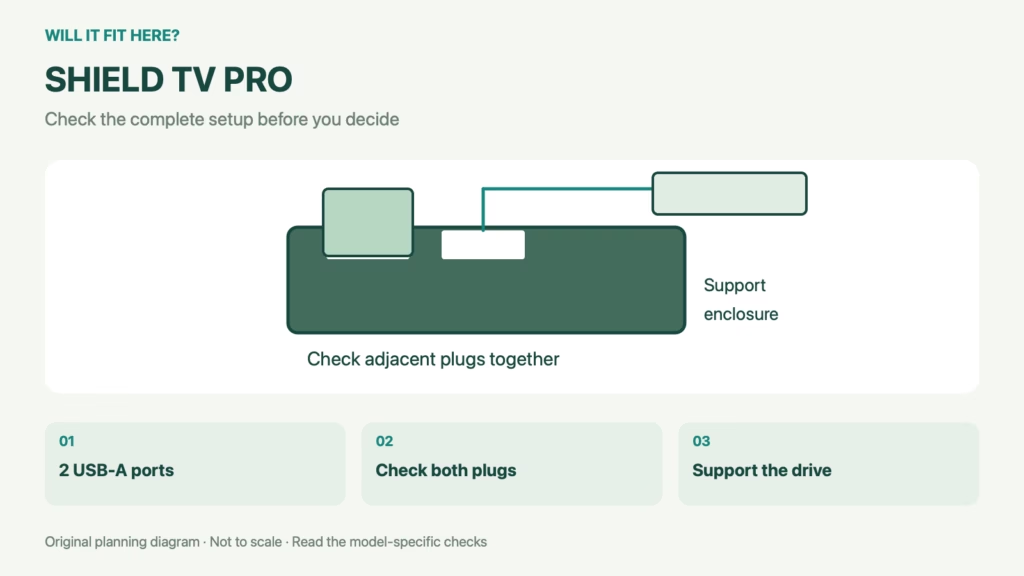
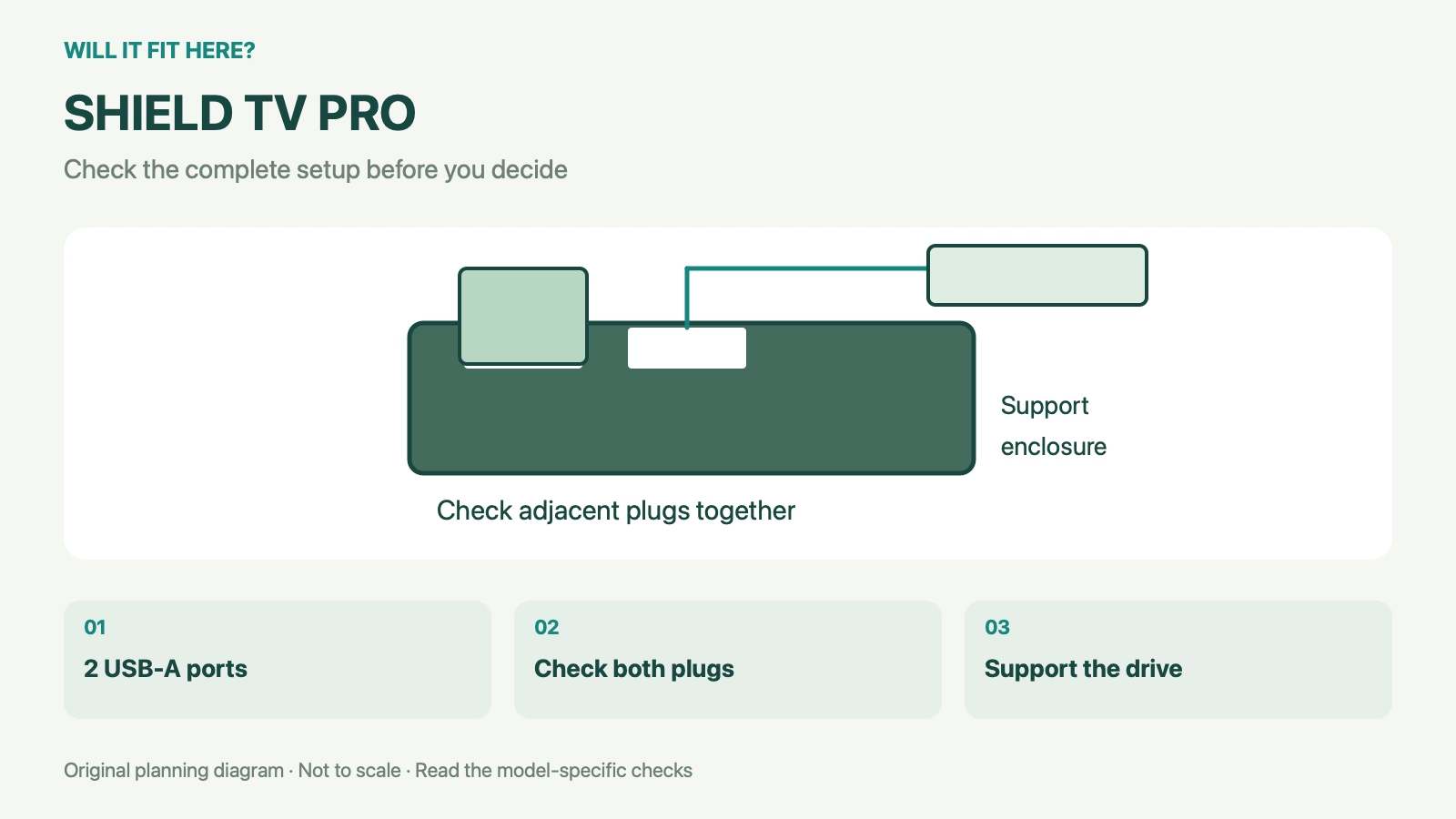
Place a paper outline of the player on the shelf and mark the rear connectors. Measure the drive body or USB cable plug from the point where it sits fully inserted. A wide flash drive can occupy space beside its socket and obstruct the neighbouring port. A hard-drive enclosure needs its own supported resting place; do not let its weight hang from the player’s socket. Include HDMI, Ethernet and power leads in the same plan, since all the cables share the area behind the box.
3. Keep removal and servicing practical
Leave enough access to disconnect a cable deliberately rather than pulling on it by the wire. If the drive has a separate power supply, plan the plug and outlet position as well. Follow NVIDIA’s storage instructions for the selected mode and file system. Test the files and applications you actually intend to use before tidying the cabinet. A physically successful installation can still be unsuitable if a format or software limitation prevents the intended content from being read.
4. Keep a SHIELD TV Pro fit record
Label the chosen drive with its intended use in your own notes, especially if another household member may remove it. Record which USB port it occupies and whether the enclosure needs separate power. Before moving the player to another cabinet, repeat the simultaneous-plug check with every cable attached. A new shelf back can change the available connector depth substantially.
SHIELD TV Pro: a worked fit example
Example: a wide USB flash drive can fit one Type-A socket while covering part of the second socket. Two nominally compatible devices therefore need a simultaneous connection check. A short, appropriate extension may alter the layout, but its electrical suitability and the storage device’s requirements still need to be established.
Before you decide: 5 checks
- Confirm the Pro model and available ports.
- Choose removable or device-storage use deliberately.
- Measure both USB devices connected at once.
- Give each enclosure support and cable space.
- Verify setup, file access and safe removal instructions.
FAQ
Does the standard product name guarantee two USB ports?
Use the specification for your exact SHIELD hardware; this guide concerns the Pro.
Can body dimensions describe the full shelf depth?
No. Add the actual connected plugs and cable routes.
Is every drive ready without formatting?
No. Follow NVIDIA’s instructions for your intended storage mode and preserve existing files first.
Related fit guides
- TV Cable Clearance: 5 Simple Niche Fit Checks
- Game Console Fit: 5 Useful TV-Shelf Checks
- TVs fit guides
Sources
Sources checked 3 November 2026. Product-specific facts are attributed above. Worked examples and measuring methods are planning guidance; example dimensions are not product specifications. Recheck the exact model or current travel policy before acting.